
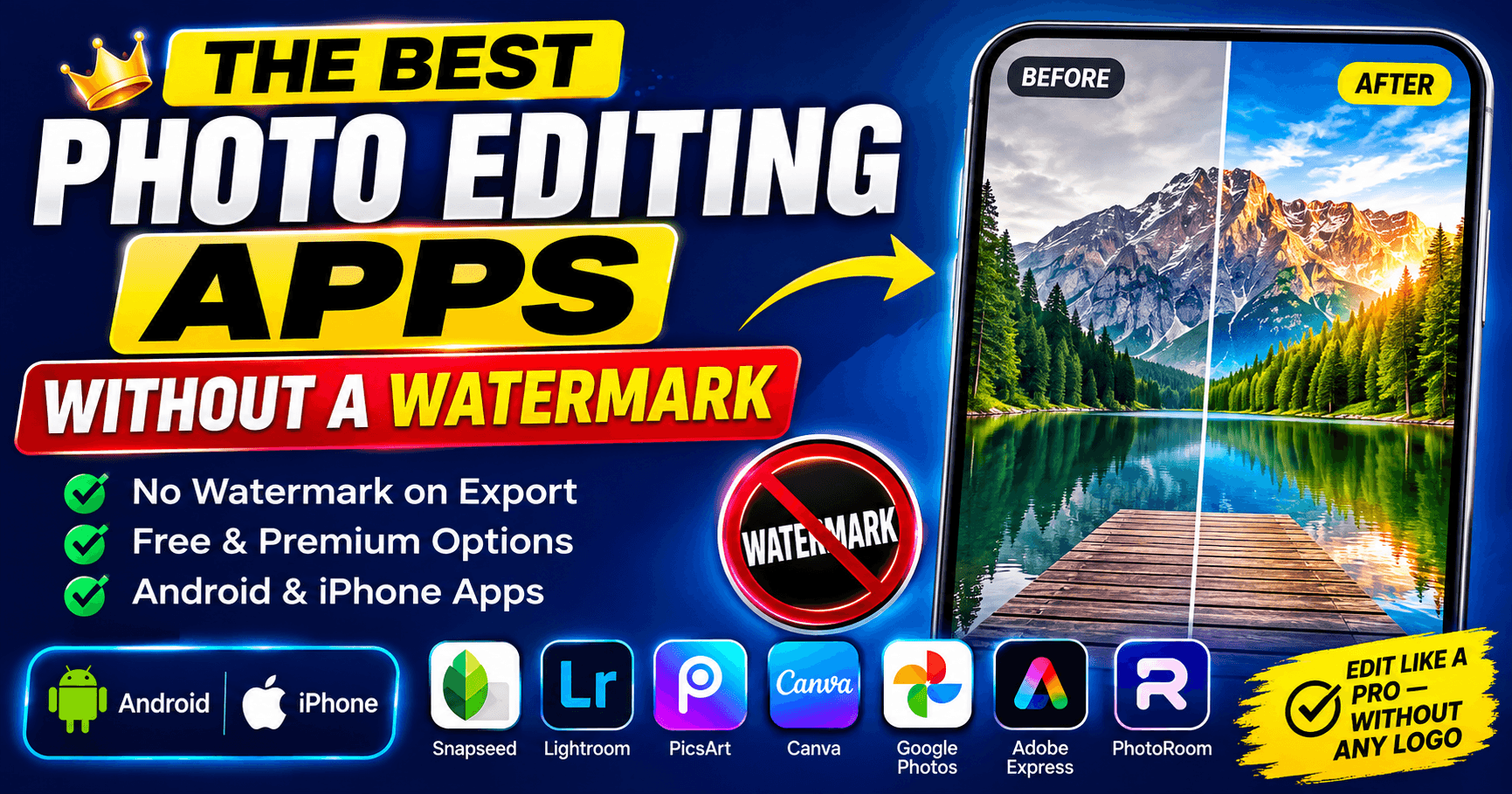
Finding the best photo editing apps without a watermark can save you from unwanted logos and branding on your images. Nothing ruins a beautifully edited photo faster than an unwanted watermark stamped across the corner. Whether you are posting on Instagram, designing a YouTube thumbnail, building a portfolio, or preparing product photos for an online store, a stray logo can make an image look unfinished and unprofessional.
The good news: several excellent photo editing apps without a watermark exist in 2026—though the details matter more than most lists let on. Some apps are watermark-free on every single export. Others are only watermark-free as long as you stick to free assets and add a logo the moment you use a premium filter, template, or AI tool.
If you’re just starting with photo editing, check out our guide to the 8 Best Free Photo Editing Apps for Android Beginners (2026) for a broader list of beginner-friendly options.
We tested that distinction for every app below, verified it against official documentation, and flagged every case where earlier reviews got the policy wrong.
Quick Comparison: Watermark Policies at a Glance
| App | Watermark Policy | Free Version | AI Features | Best For |
|---|---|---|---|---|
| Snapseed | Never—fully free, always | Yes (everything unlocked) | Yes | Professional editing |
| Adobe Lightroom | Never on exports (some tools are premium-only) | Yes, with limits | Limited free | Photography & color |
| PicsArt | Added on many free-tier AI exports | Yes, with limits | Excellent (mostly paid) | Social media |
| Canva | Only on premium elements/templates | Yes (50 AI credits/mo) | Yes | Content creation |
| Google Photos | Never (Magic Editor capped at 10/mo) | Yes | Yes | Everyday editing |
| Adobe Express | On premium content only | Yes (25 AI credits/mo) | Yes | Marketing graphics |
| PhotoRoom | On every free-plan export—no commercial use | Yes, not for commercial use | Excellent (mostly paid) | Product photos |
| Pixlr | Standard exports are clean; some AI tools add watermarks | Yes | Yes | Quick editing |
| Polish | Standard exports are clean | Yes | Yes | Beginner editing |
| YouCam Perfect | Free AI/edited exports have a watermark; premium removes it | Yes, limited | Excellent | Selfies & portraits |
How We Verified These Apps
Instead of copying claims from other roundups, we checked each app against official pricing pages, in-app store listings, help center documentation, and August 2026 update notes. We specifically verified:
- Whether a watermark appears on standard exports
- Whether a watermark appears on premium or AI-specific exports
- What is genuinely free versus locked behind a subscription
- Current version and 2026 feature updates
This changed several things from the standard “all watermark-free” claims you will see elsewhere—most notably for PicsArt, Adobe Express, PhotoRoom, and YouCam Perfect, which are more conditional than commonly advertised. Every case is flagged clearly below.
1. Snapseed—Best Photo Editing App Without Watermark (Completely Free)
For anyone searching for the best photo editing apps without watermarks, Snapseed remains the cleanest answer to the question “completely free, no watermark, ever.” Google released the major Snapseed 4.0 update for Android in May 2026, finally bringing both platforms to feature parity after a long gap. Then in July 2026, Snapseed 4.1 arrived, making it even more capable.
The 4.0 update added non-destructive editing, batch editing, Smart Masking (one-tap subject or background selection), a built-in Snapseed Camera with real-time film simulations, and new tools including Color HSL, Dehaze, Bloom, and Halation—on top of the existing RAW support, healing brush, curves, and selective editing.
The July 2026 Snapseed 4.1 update then expanded RAW support to seven major camera formats: DNG, ARW (Sony), RAF (Fujifilm), NEF (Nikon), CR3 (Canon), ORF (Olympus), and PEF (Pentax). It also added in-tool undo and redo, so you can reverse edits without leaving the editing interface. Android Authority’s teardown of version 4.1.3 also found color grading tools, built-in RAW DNG capture, and a collage editor in development—not live yet, but coming.
All of this stays completely free—no ads, no subscription, no watermark on any export. In 2026, that is genuinely unusual for an app at this feature level.
✔ Pros
- Completely free—no watermark, ever, on any export
- No ads, no in-app purchases, no subscription of any kind
- Non-destructive and batch editing (new in 4.0)
- RAW support now covers 7 major camera formats (new in 4.1)
- Built-in camera with real-time film simulations
- Over 30 professional tools, including curves, selective edits, healing, and masking
- In-tool undo/redo (new in 4.1)
✘ Cons
- No desktop version—mobile only on Android and iOS
- Gesture-based interface has a short learning curve for first-time users
- Some upcoming features (color grading, DNG capture, collage) are still in development
Best For:
Photographers, bloggers, students, and anyone who wants professional photo editing tools at zero cost with zero catches.
2. Adobe Lightroom—Best Photo Editing App Without Watermark for Color Grading
Lightroom‘s free mobile tier does not stamp a watermark on your exports—but it is genuinely limited compared to what most people expect from “free.” The app never adds its own logo to your photos, whether you are on the free tier or a paid Creative Cloud plan. What you add as a watermark (your own text or graphic) is your choice during export—the app itself adds nothing.
What you get for free is still useful: basic exposure, color, and lighting adjustments, cropping, a set of one-tap presets, and the AI-powered Enhance feature. For photographers who want DSLR-style color grading without a watermark and do not mind the free-tier tool limits, it remains one of the strongest mobile editors available.
✔ Pros
- No watermark on exports, free or paid—never
- Excellent color and exposure controls even on the free tier
- Beginner-friendly presets for one-tap editing
- Cloud sync across Android, iOS, desktop, and web (with subscription)
- AI Enhance feature available for free
✘ Cons
- Healing brush, selective masking, RAW editing, geometry tools, and batch editing are premium-only (Creative Cloud Photography plan)
- Requires an Adobe account even for the free version
- Heavier on storage and battery than lighter apps
Best For:
Photographers and content creators who want professional color grading without a watermark and do not mind paying for advanced tools.
3. PicsArt — Best for Creative AI Editing (Watermark on Free AI Exports)
PicsArt is still one of the most feature-rich all-in-one creative editors available in 2026, but it is not the watermark-free free tool that many older lists describe it as. The honest picture: the free tier adds a small logo to many exports, caps AI features at around 5 credits per week, runs ads, and does not include a commercial license. It is a discovery tool rather than a production tool at the free tier.
The paid experience is a different story. PicsArt in 2026 introduced Aura, a voice-first AI assistant that generates and edits images from text or voice prompts. The AI Agent Marketplace, launched in March 2026, added specialized agents accessible via WhatsApp and Telegram—Flair for Shopify integration, Resize Pro for platform formatting, Remix for style transfers, and Swap for background changes.
✔ Pros
- Huge creative toolkit: filters, stickers, templates, collage maker
- Strong AI feature set—Aura assistant, background removal, AI Replace, image-to-video
- Beginner-friendly interface despite the large feature set
- AI Agent Marketplace is genuinely innovative
✘ Cons
- Free-tier exports often carry a small watermark—not watermark-free as commonly described
- Ads appear frequently in the free version
- No commercial license on the free plan
- Free AI credits capped at approximately 5 per week
Best For:
Instagram creators and social media editors who plan to upgrade to a paid plan for clean, watermark-free exports—or who do not mind a small logo on casual personal posts.
4. Canva — Best Photo Editing App Without Watermark for Social Media and Design
Canva confirms its own watermark policy in its Help Center: designs made only with free elements export without any Canva branding. The watermark only appears if you use a premium photo, video, graphic, or template—in which case that element shows a watermark until you either license it individually (roughly $1–2 per item) or subscribe to Canva Pro.
For basic cropping, resizing, color adjustment, text, and AI tools like Magic Edit and Magic Eraser, the free plan holds up well for social graphics and quick marketing content. The free plan includes 50 AI credits per month for tools like Magic Design and Dream Lab image generation. Canva AI 2.0, launched in April 2026 at Canva Create in Los Angeles, introduced the world’s first design-specific AI foundation model—but conversational AI design (the headline feature) requires Ultra AI credits, which are not available on the free plan.
✔ Pros
- No watermark as long as you stick to free assets—genuinely true
- Excellent templates and layout tools for social media and presentations
- 50 AI credits per month on the free plan
- Magic Layers (March 2026) converts flat images into editable layered designs
- Cross-device syncing across Android, iOS, and web
✘ Cons
- Premium elements add a watermark until purchased or unlocked with Pro
- Canva Pro is now $18/month billed monthly ($12/month on the annual plan)—higher than most older reviews state
- Canva AI 2.0 conversational design requires Ultra credits—not available on the free plan
- Background Remover, Magic Resize, and Magic Eraser are Pro-only
Best For:
Content creators, freelancers, and small business owners doing social posts, presentations, and marketing graphics—as long as you stick to free assets.
5. Google Photos — Best Free Photo Editing App Without Watermark for Everyday Edits
Most people already have Google Photos installed and do not realize that it offers a capable editor and can be considered one of the best photo editing apps without a watermark for everyday editing. Since the 2026 rollout, Google made Magic Eraser, Photo Unblur, and Color Pop free and unlimited for all users on compatible devices—no Pixel phone or Google One subscription required.
Magic Editor, the more powerful generative AI tool—which can reposition subjects, change skies, and edit backgrounds—is capped at 10 free edits per month unless you are on a Pixel device or a 2TB+ Google One plan. None of Google Photos’ exports carry a watermark on any plan or feature.
✔ Pros
- No watermark ever—on any export, any plan
- Magic Eraser, Photo Unblur, and Color Pop are free and unlimited for all users
- Extremely easy to use—almost no learning curve
- Already installed on most Android phones
- Free cloud backup up to 15GB
✘ Cons
- Magic Editor limited to 10 free edits per month (non-Pixel)
- Best Take and Audio Magic Eraser for video remain Pixel-exclusive
- Limited manual editing controls compared to Snapseed or Lightroom
Best For:
Casual users who want fast, high-quality photo edits—including AI object removal—without installing anything new or ever seeing a watermark.
Quick Recommendation Guide
| If You Need… | Best App |
|---|---|
| Completely free, watermark-free, no exceptions | Snapseed |
| Professional photography and color grading | Adobe Lightroom |
| Creative AI editing for social content | PicsArt (paid plan for clean exports) |
| Social media designs and marketing graphics | Canva (stick to free assets) |
| Everyday quick photo fixes | Google Photos |
| Branded marketing graphics | Adobe Express |
| eCommerce product photos | PhotoRoom (Pro plan required) |
| Fast browser-based editing | Pixlr |
| Beginner-friendly casual edits | Polish |
| Selfies and AI portrait enhancement | YouCam Perfect (paid for watermark-free) |
6. Adobe Express — Best for Marketing Graphics (Watermark on Premium Content Only)
Adobe Express is also worth considering if you’re comparing the best photo editing apps without watermarks, especially when you use its free assets, but premium content adds a watermark until you pay for it. The free plan is genuinely useful—100,000+ templates, 1 million+ stock assets, 4,000+ fonts, basic editing tools, and 25 Firefly generative AI credits per month. For most everyday social media graphics and quick marketing content, you can stay entirely within the free tier and export clean.
The moment you use a premium template or premium stock photo, that element carries a watermark. The same applies once you exceed your 25 monthly AI credits. The April 2026 Firefly AI Assistant update added conversational orchestration across Adobe apps—describe what you want in plain English, and the assistant moves between Express, Photoshop, Premiere, and Lightroom without switching.
✔ Pros
- Generous free tier: 100,000+ templates, 1M+ stock assets, 25 AI credits/month
- Standard exports are clean and watermark-free within the free template library
- Firefly AI Assistant (April 2026) orchestrates edits across Adobe apps
- 25+ third-party AI models, including Runway, Flux, and OpenAI, are now integrated
- Commercially safe AI generation via Adobe Firefly
✘ Cons
- Premium templates and premium stock photos carry a watermark on the free plan
- Best features—Generative Fill, video background removal, and full template library—require Premium ($9.99/month)
- 25 AI credits per month go quickly if you iterate on designs
Best For:
Bloggers, YouTubers, and small business owners making quick graphics—as long as you stay within the free template library.
7. PhotoRoom — Best for eCommerce Product Photos (Watermark on All Free Exports)
PhotoRoom is the most commonly misrepresented app in the “no watermark” category. The reality is straightforward: every free-plan export includes a PhotoRoom watermark, and under PhotoRoom’s licensing terms, those images cannot be used commercially. For any eCommerce seller, the free plan is a testing environment, not a working tool.
That said, PhotoRoom’s AI background removal is genuinely the best available on Android—independent testing puts its accuracy at 70.8 per cent on complex product images, compared to Remove.bg’s 41.7 per cent. The H1 2026 update wave brought the multi-product AI Fashion Model (up to 4 clothing items on one AI model), AI Ironing for wrinkle removal, Product Fixer at zero credit cost, a Video Generator with 300+ eCommerce templates, and a Listing Score that analyzes your product images before you publish.
✔ Pros
- Excellent, fast AI background removal—best-in-class accuracy for product photos
- Multi-product AI Fashion Model, AI Ironing, Product Fixer, and Video Generator are all new in 2026
- The free plan is genuinely useful for testing quality before committing to a subscription
- Sellers report a median 30% increase in sales after switching to PhotoRoom
✘ Cons
- Every free-plan export is watermarked—no exceptions
- Free-plan images cannot be used commercially under PhotoRoom’s own terms
- Trustpilot rating 1.3/5—documented complaints of unexpected charges, weekly billing traps on mobile, and slow customer support
- Always subscribe via the web app—mobile billing defaults to weekly in some cases
Best For:
Online sellers and product photographers who plan to upgrade to the Pro plan ($7.50/month annual) for commercial, watermark-free exports.
8. Pixlr—Best for Fast Browser-Based Editing (Standard Exports Watermark-Free)
Pixlr is a lightweight, browser-and-mobile editor built for speed. AI background removal, object removal, filters, overlays, and double exposure effects are all available. Standard edits—the things most everyday users actually do—export cleanly without a watermark, even on the free plan. The free tier also includes watermark-free background removal, which is a meaningful advantage over PicsArt, PhotoRoom, and several other competitors.
Where it gets more conditional: some AI-generated outputs and certain premium features add a watermark on the free tier. If you are doing primarily manual editing, cropping, resizing, and basic AI background removal, you will likely never hit this. If you push into more advanced AI generation, you may.
✔ Pros
- Standard exports are watermark-free, including AI background removal
- Fast, lightweight—runs entirely in the browser without installation
- Good free feature set: filters, overlays, double exposure, basic AI tools
- AI background removal on the free plan—no watermark, no subscription
✘ Cons
- Ads in the free version
- Some AI-generated outputs and premium features add a watermark on the free tier
- File size capped at 10MB on the free plan
- AI credits are limited monthly—heavy AI users will hit the cap
Best For:
Quick edits, bloggers, and students who want a fast, no-fuss browser editor with watermark-free standard exports.
9. Polish (AI Photo Editor)—Best for Beginner Editing Without Watermarks
Polish—now officially listed as “AI Photo Editor – Polish”—combines beauty retouching, 500+ filters, AI effects, and simple AI tools in an interface built for beginners. Standard exports are clean, and the app specifically confirms watermark-free direct sharing to Instagram and Facebook in its own Play Store listing.
The 2026 updates added summer collection filters and templates, an upgraded Fit tool with organized background tabs, enhanced crop and reshape tools, and continued AI filter updates. It remains one of the more straightforward options for users who want quick, attractive edits without learning a complex tool stack.
✔ Pros
- Standard exports are watermark-free—confirmed
- Direct sharing to Instagram and Facebook without watermarks
- Beginner-friendly with 500+ filters and effects
- Simple, uncluttered interface
- Actively maintained—version 1.781.264 released August 2026
✘ Cons
- Ads in the free version
- Advanced AI effects and some premium features require a subscription
- Less powerful than Snapseed or Lightroom for serious editing
Best For:
Beginners and casual users who want quick, attractive edits with clean exports and no learning curve.
10. YouCam Perfect — Best AI Selfie Editor (Watermark Removed with Premium)
YouCam Perfect focuses on selfies and portraits: AI beauty retouching, skin smoothing, teeth whitening, background and object removal, and sky replacement. The app is easy to use, and the portrait results are genuinely good.
The watermark situation is more complex than many reviews describe. Free-tier AI-edited exports carry watermarks. Upgrading to Premium removes watermarks, enables HD save, and unlocks unlimited access to object removal and over 2,000 effects and stickers. Commercial use is restricted to paid users. If you plan to use YouCam seriously for any public-facing content, the free tier is essentially a preview rather than a working tool.
✔ Pros
- Strong AI selfie and portrait tools
- Easy to use—minimal learning curve
- Wide range of beauty retouching options with slider control
- The premium plan removes watermarks and enables HD exports
✘ Cons
- The free version includes watermarks on AI-edited exports—not watermark-free, as some older reviews claim
- Commercial use restricted to premium users
- Advanced AI tools are premium-only
- Some free-tier features have usage caps
Best For:
Influencers, selfie editors, and portrait photographers who plan to use the Premium plan for watermark-free, commercially usable exports.
How to Choose the Right Photo Editing App Without Watermark
- Choose Snapseed: If you’re comparing the best photo editing apps without watermark, choose Snapseed if you want a completely free editor with no watermarks.
- Choose Adobe Lightroom if color accuracy and photography are your priority and you do not need the advanced tools locked behind Premium.
- Choose PicsArt if you enjoy creative AI editing and plan to pay for Gold or Plus to get clean, watermark-free exports.
- Choose Canva if you design for Instagram, YouTube, or your business—and you stick to free assets to avoid the watermark on premium elements.
- Choose Google Photos if you just want quick, reliable everyday edits with no watermark, ever.
- Choose Adobe Express if you make marketing graphics and can work within the free template library without touching premium assets.
- Choose PhotoRoom if you sell products online and are willing to pay for watermark-free, commercially licensed exports. Subscribe via the web app to avoid billing surprises.
- Choose Pixlr if you want a fast, lightweight browser editor with watermark-free standard exports.
- Choose Polish if you prefer simple filters, AI tools, and clean exports as a beginner.
- Choose YouCam Perfect if selfies and portraits are your main focus and you plan to use the Premium plan for watermark-free results.
Frequently Asked Questions
Which photo editing apps never add a watermark?
Among the best photo editing apps without watermark, Snapseed and Google Photos stand out because they do not add watermarks to exported images on any plan, ever. Adobe Lightroom also never adds its own watermark to exports—though several of its editing tools are premium-only. Canva and Adobe Express avoid watermarks only if you stick to free assets and templates.
Is Snapseed completely free in 2026?
Yes. Snapseed is fully free with no ads, no subscription, and no watermark—confirmed by Google’s own Play Store listing. The July 2026 Snapseed 4.1 update expanded RAW support to seven major camera formats (DNG, ARW, RAF, NEF, CR3, ORF, and PEF) and added in-tool undo and redo, all still completely free.
Does PicsArt add a watermark on the free plan?
Yes, often. Despite being commonly listed as watermark-free, PicsArt’s free tier adds a small logo to many exports. The free AI credit cap is approximately 5 credits per week. Upgrading to a paid plan removes watermarks and unlocks unlimited AI features.
Does PhotoRoom watermark every free export?
Yes. Per PhotoRoom’s own 2026 pricing page, every free-plan export carries a watermark, and free-plan images are not licensed for commercial use. The Pro plan ($7.50/month billed annually) removes the watermark and grants commercial rights. If you subscribe via mobile, check that you are on monthly rather than weekly billing—the Trustpilot reviews document weekly billing surprises from mobile sign-ups.
How much does Canva Pro cost in 2026?
Canva Pro is $18/month billed monthly, or approximately $12/month billed annually ($144/year). Older reviews quoting $14.99 or $12.99 are out of date—the price increased in stages through 2025 and 2026. Canva Business (previously Teams) is $25/user/month, billed monthly.
Which app is best for beginners?
Google Photos, Canva, and Polish are all excellent for beginners with gentle learning curves. Google Photos is the easiest—it is already installed on most Android phones and requires no setup at all.
Can I edit RAW photos without a watermark?
Yes. Snapseed supports full RAW editing across seven formats with no watermark, completely free. Adobe Lightroom’s free tier does not include RAW editing—that is a premium-only feature—but Lightroom never watermarks exports regardless of plan.
Are free photo editing apps safe to use?
Apps downloaded from the official Google Play Store or Apple App Store are generally safe. Always check the permissions an app requests and review its privacy policy before installing, especially for AI tools that upload your photos to cloud servers for processing. For sensitive or private photos, a local-only editor like Snapseed is the safest option.
Final Verdict: Best Photo Editing Apps Without Watermark (2026)
Choosing among the best photo editing apps without watermark ultimately depends on how strict your no-watermark requirement is.
If the answer is “never, under any circumstance, for free,” Snapseed is the only app on this list that truly qualifies. It is free, powerful, has no ads, and has no subscription, and the 4.1 update in July 2026 made it even more capable—seven RAW formats, in-tool undo/redo, and more on the way. Nothing else comes close to that combination.
For photographers who want professional color control and can live with the free-tier tool limits, Adobe Lightroom remains excellent and never watermarks an export on any plan.
If you are building social media content, Canva and Google Photos both stay watermark-free as long as you avoid premium assets or exceed the Magic Editor limit. Adobe Express follows the same conditional model as Canva.
If you sell products online, go in expecting to pay PhotoRoom for clean, commercially licensed exports—the free tier is a testing environment, not a working tool, and the billing practices deserve careful attention before subscribing.
This article was fact-checked against official pricing pages, help-center documentation, app store listings, and 2026 update notes as of August 13, 2026. App pricing and watermark policies change frequently—always confirm current terms on the app’s official page before publishing content built with it.
Want to explore more AI-powered editing options? Read our guide to the Best AI Photo Editing Apps for Android Beginners in 2026.

2 Comments on “10 Best Photo Editing Apps Without Watermarks (Free & Paid) – 2026”