
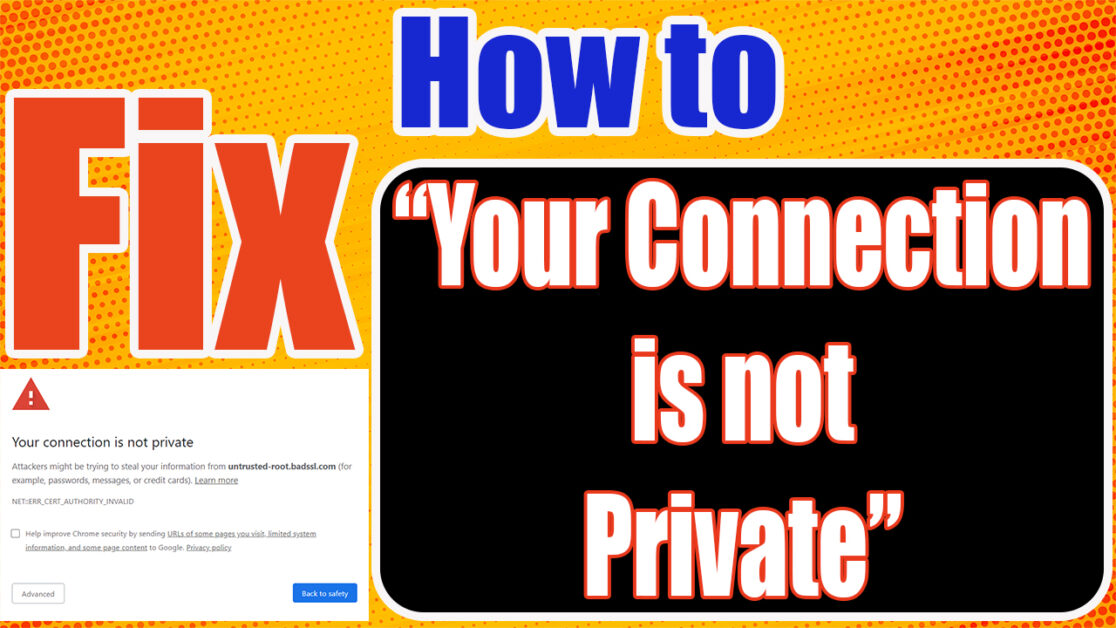
How to Fix “Your Connection is Not Private”
Hi Friends… Hope you all are fine. In This Article, I wanna tell you about a common issue that sometimes one or the other of us encounters is, “Your Connection is Not Private”. When we browse a website, we can’t access any website. This message appears again and again and we get confused about this problem. In this article, I will tell you the way how can you get rid of this issue forever.
First of all, you have to go to the Chrome browser or browser that are you using.
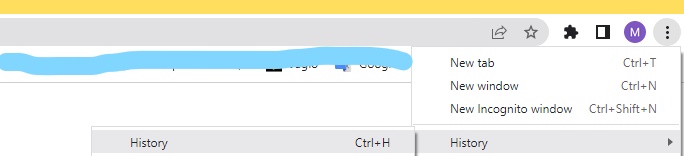
Go to the browser’s history
Click on clear browsing data and click on the advance option.
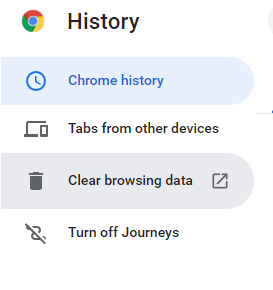
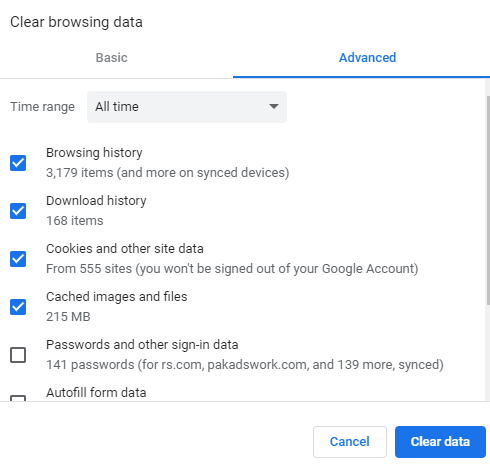
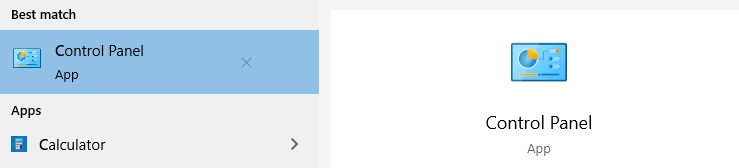
Tick all the boxes which I have checked and click on clear data. After this, you have to go back, go to Start Program, and search the control panel. If you are using Windows 7 then it will be in the start program, but if you are using Windows 10, you should search it in the search bar near the start program or start button.
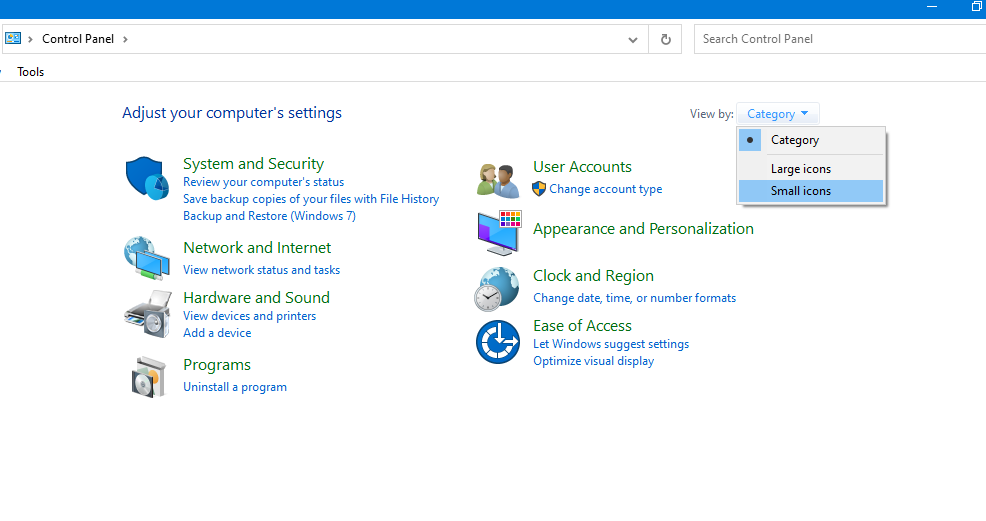
Here it will be selected as a Category by default. You have to select a small icon.
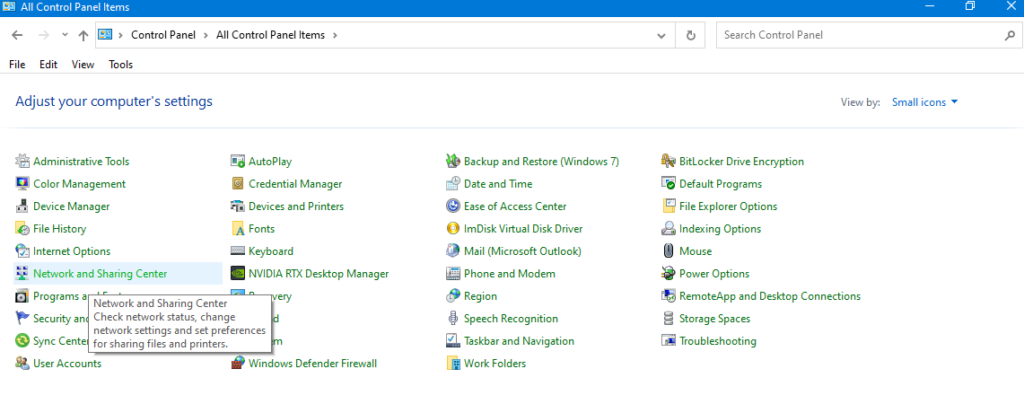
After this go to the “Network and Sharing Center”.
Here, click on the change adapter settings.
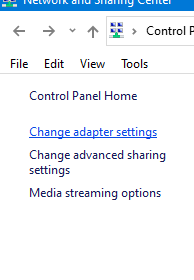
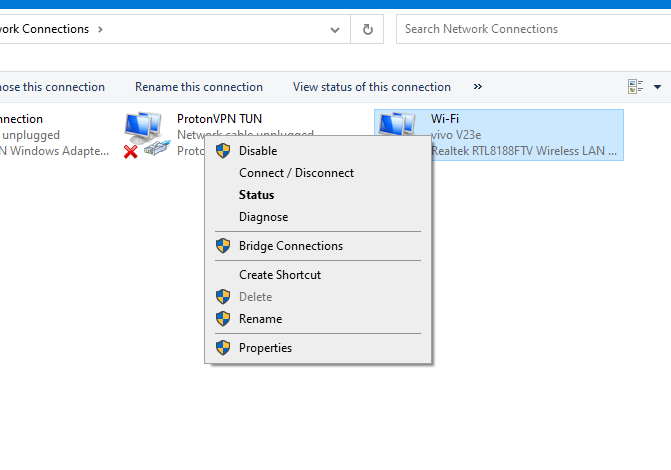
Right-click on the wifi that is connected to your computer and click on its properties.
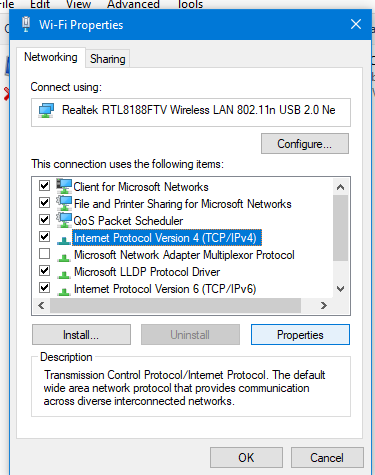
Click on Internet Protocol Version 4 (TCP/IPV4) and go to its properties
Here, click on “Use the following DNS server addresses“. Here you have to write 8,8,8,8 in all the boxes, After writing 8 in all boxes you have to write 8,8,4,4 in other boxes below the boxes in which you have written 8,8,8,8
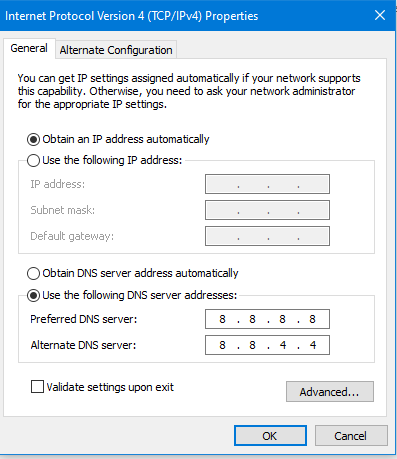
Click on OK and restart your computer. Your problem will be solved by the Grace of Allah.
Watch the Tutorial through this link on my YouTube channel




Your point of view caught my eye and was very interesting. Thanks. I have a question for you.
How can i help you?